Application installation
Microsoft Windows
This section describes the installation on Windows 11. The procedure may differ on other operating system versions.
Download the installation package and open it by double-clicking it.
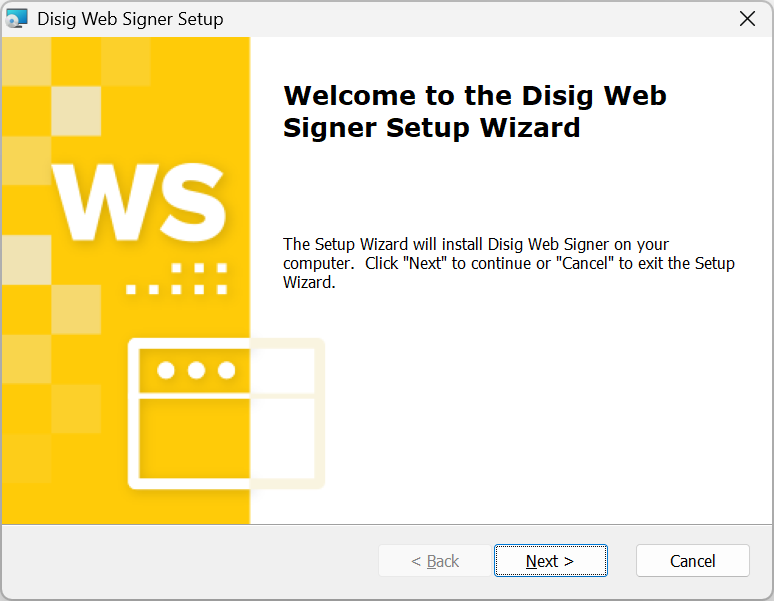
Continue by clicking “Next >”.
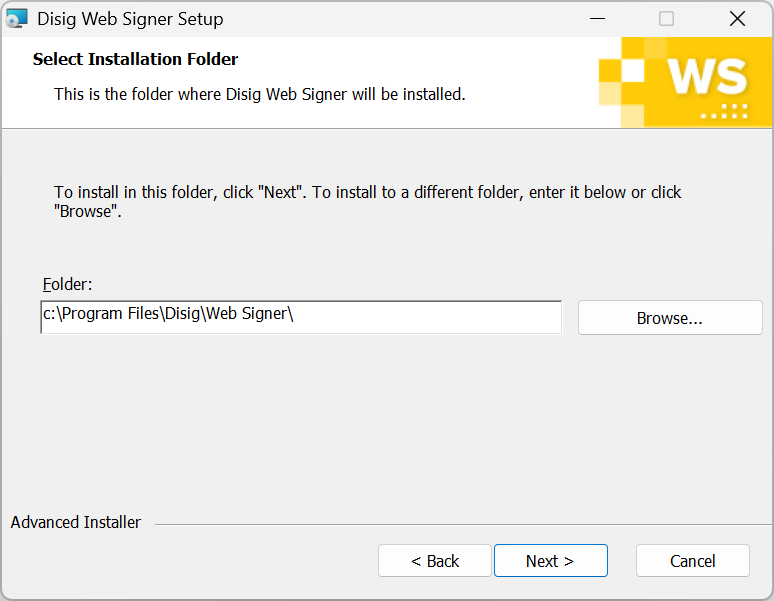
Select the destination directory where the application will be installed and click “Next >” to continue.
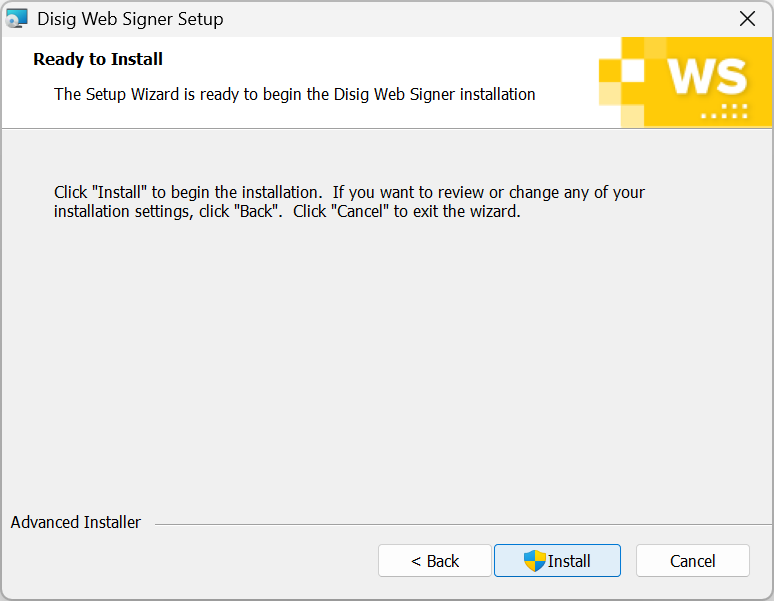
Click “Install” to continue.
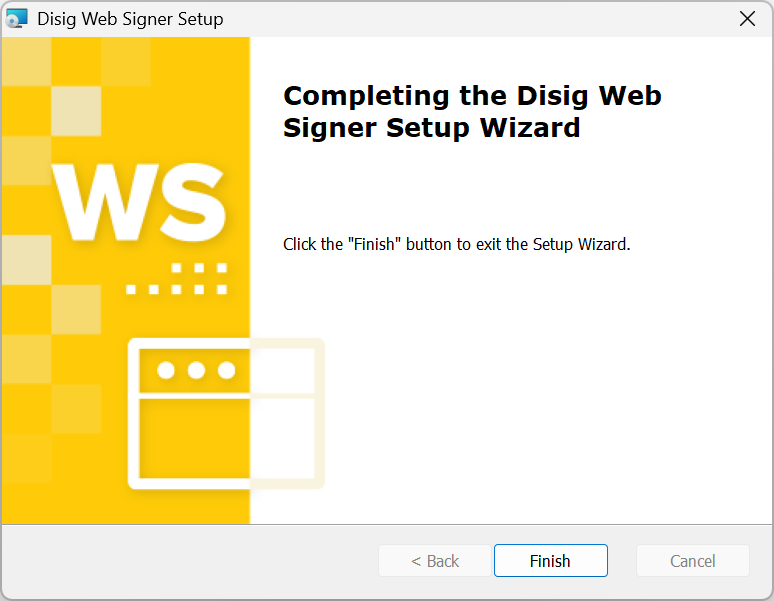
Click “Finish” to complete the installation.
Apple macOS
This section describes the installation on macOS 26.5. The procedure may differ on other operating system versions.
Download the installation package and open it by double-clicking it in the graphical user interface.
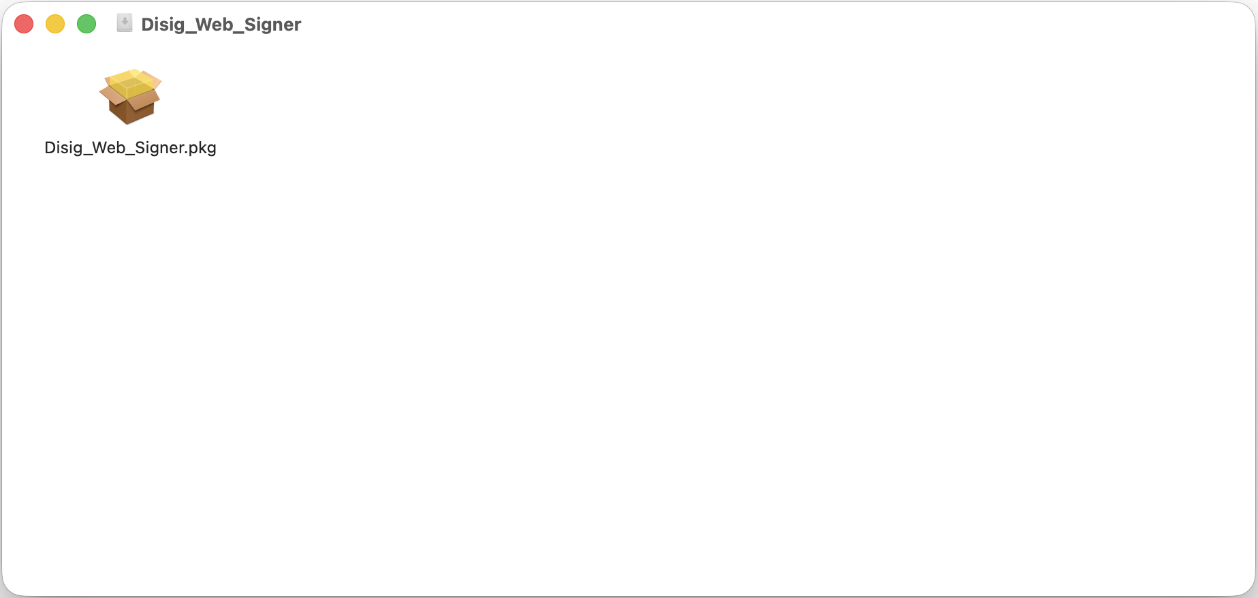
Continue by clicking the installation package Disig_Web_Signer.pkg.
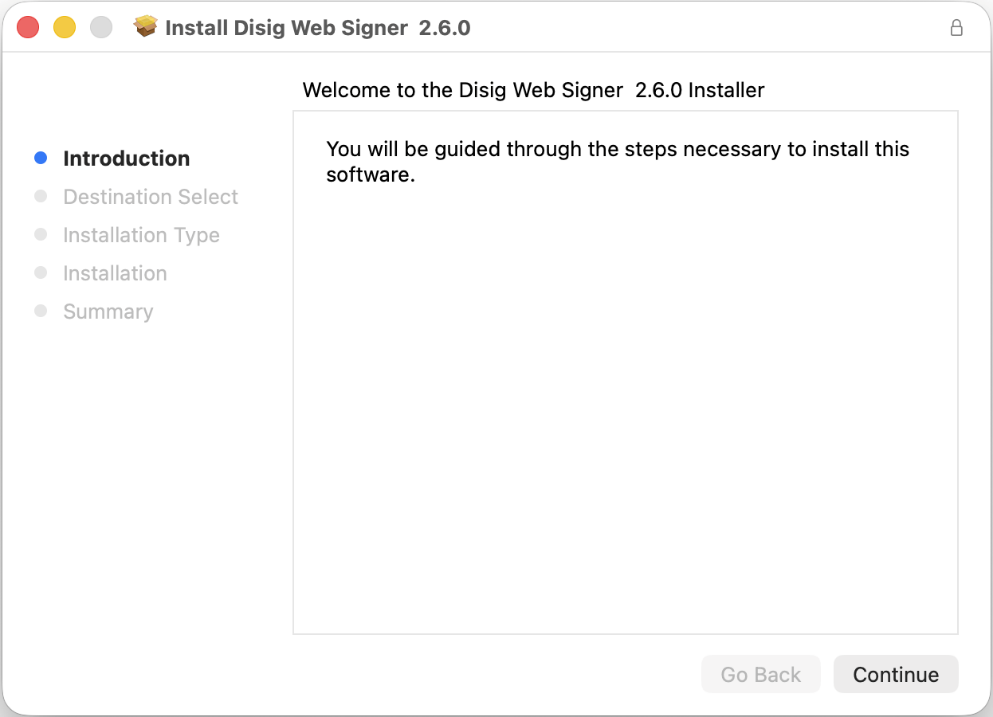
Continue by clicking “Continue”.
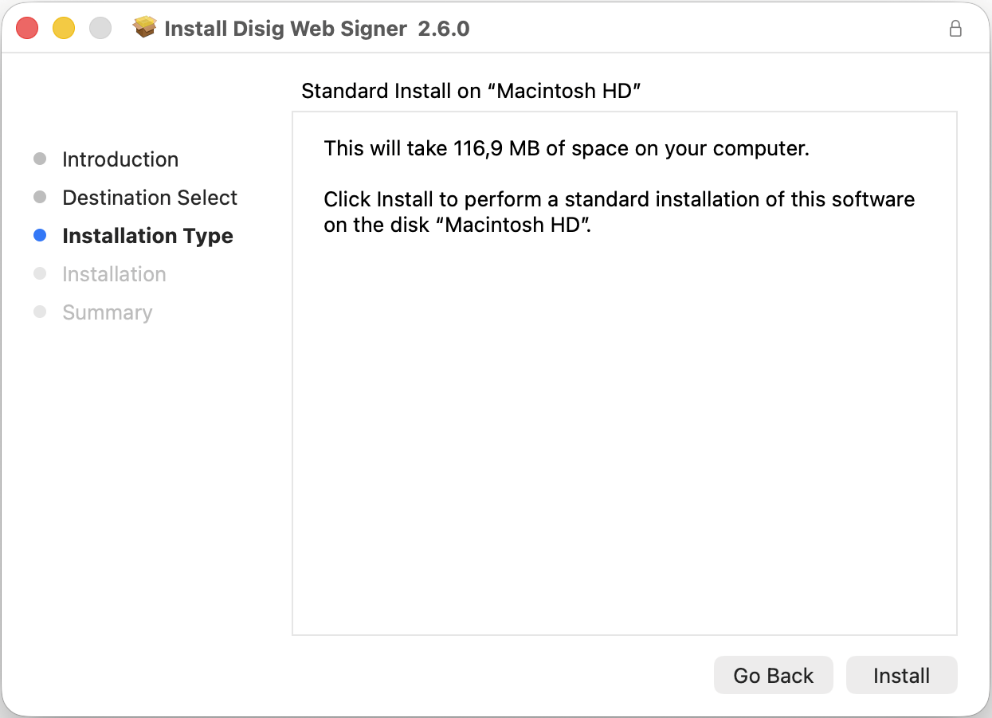
Click “Install” to continue.
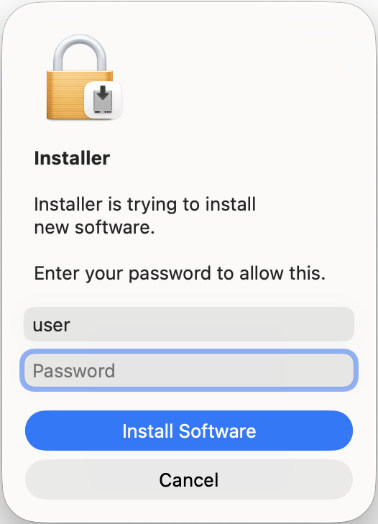
The operating system may ask you to enter your user password to grant permission to install the software. Enter your password and click the “Install Software” button to proceed.
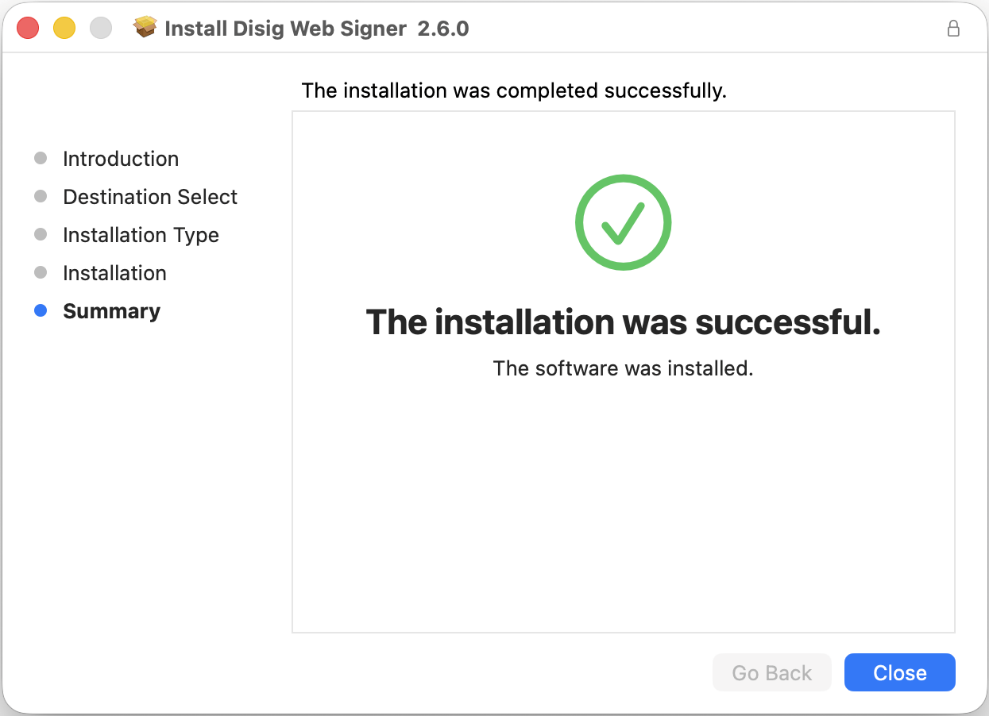
Click “Close” to complete the installation.
Note
If needed, the application can be uninstalled by running the script /Applications/Disig Web Signer.app/Contents/Resources/uninstaller.tool.
Linux
This section describes the installation on Ubuntu 26.04. The procedure may differ on other versions or other distributions.
Download the installation package and open it by double-clicking it in the graphical user interface.
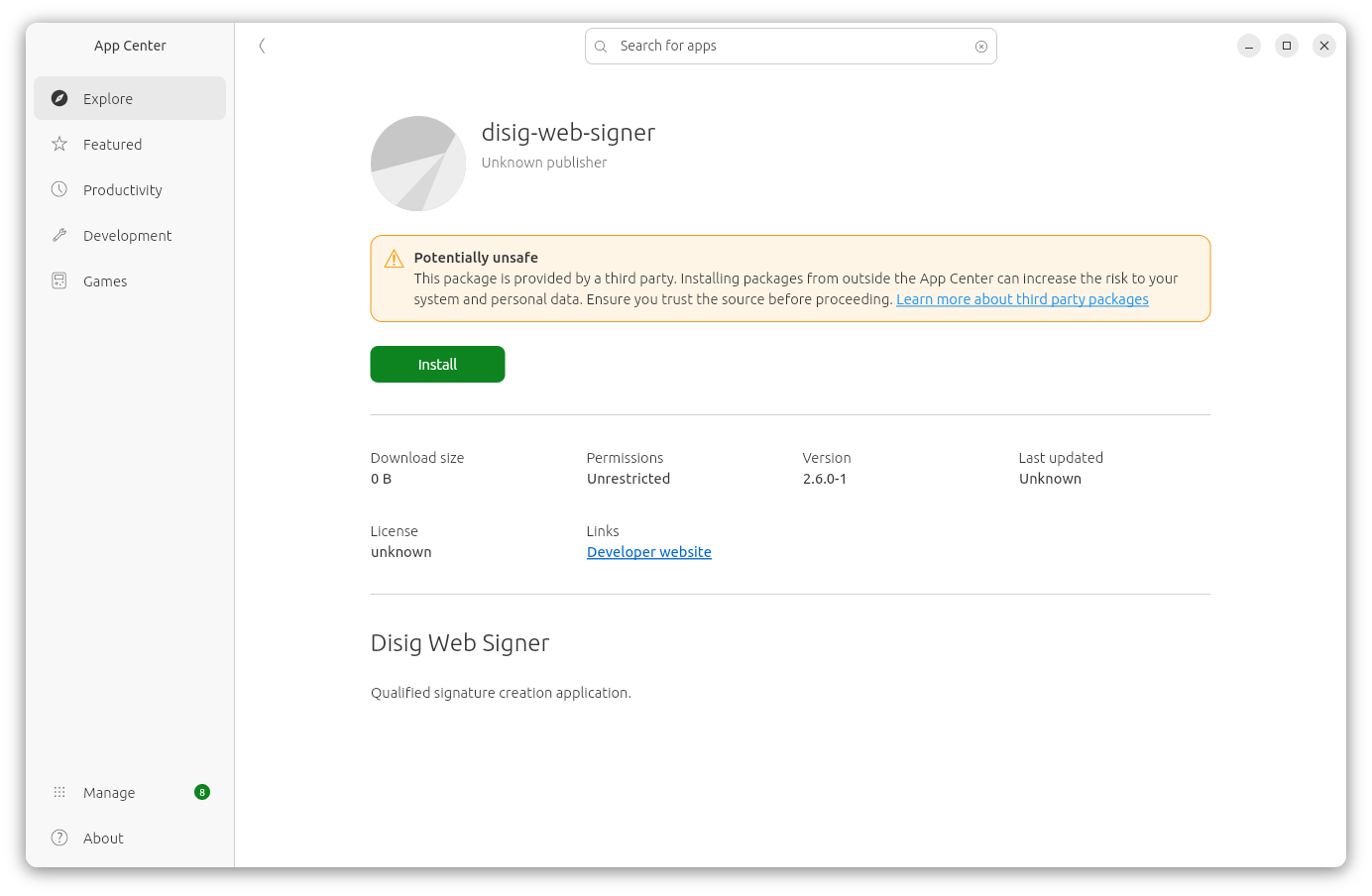
In the App Center application, continue by clicking the “Install” button.
The App Center application may display a warning that the package is provided by a third party. This warning appears for all packages that are not part of the official Ubuntu repositories; you can safely ignore it.
App Center may ask you to enter your user password to grant permission to install the software.
Once the package has been installed successfully, you can close the App Center application.
Note
From the command line, the application can be installed using the command sudo apt-get install ./disig-web-signer_*.deb.