Running the application
The web browser can sign documents only when the Web Signer application is running.
Microsoft Windows
Application startup check
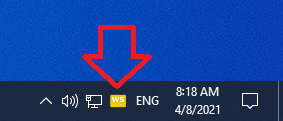
When the Web Signer application is running, a yellow application icon is displayed in the notification area of the taskbar.
Manual application startup
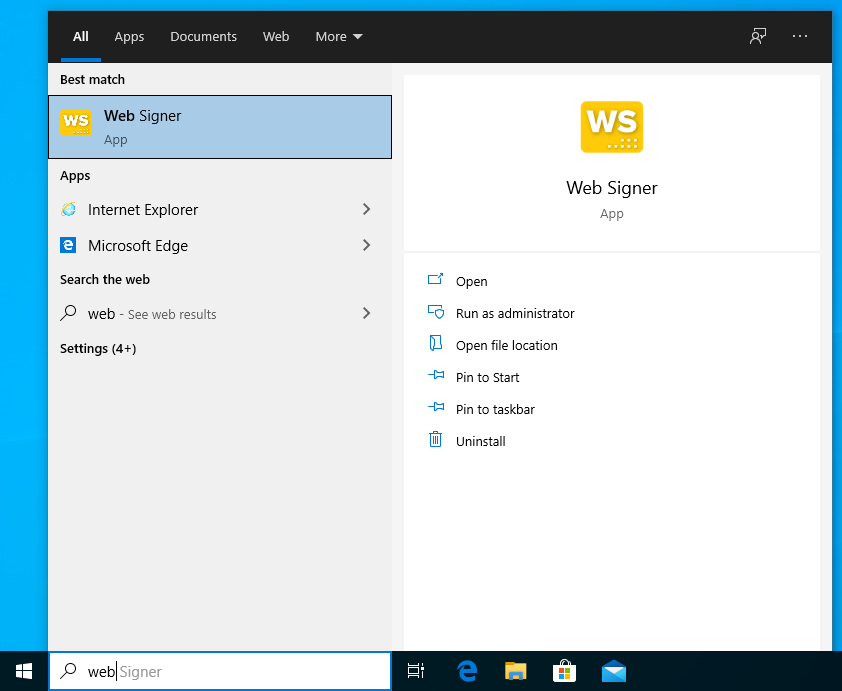
The Web Signer application can be started manually from the Start menu of the operating system:
- Click the Start menu icon, which is usually located in the lower left corner of the screen.
- Start typing the application name “Web Signer”.
- Click the Web Signer icon when it appears in the Start menu.
The following figure shows the Start menu with the application icon:
Automatic application startup
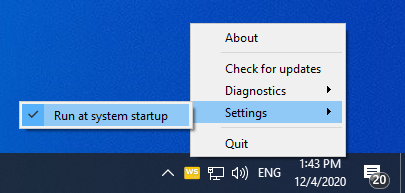
Automatic start of the Web Signer application at operating system startup can be enabled or disabled by right-clicking the Web Signer application icon in the notification area of the taskbar and selecting the “Settings > Run at system startup” option.
This setting applies only to the current user account.
Apple macOS
Application startup check
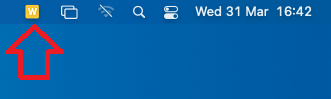
When the Web Signer application is running, a yellow application icon is displayed on the menu bar.
Manual application startup
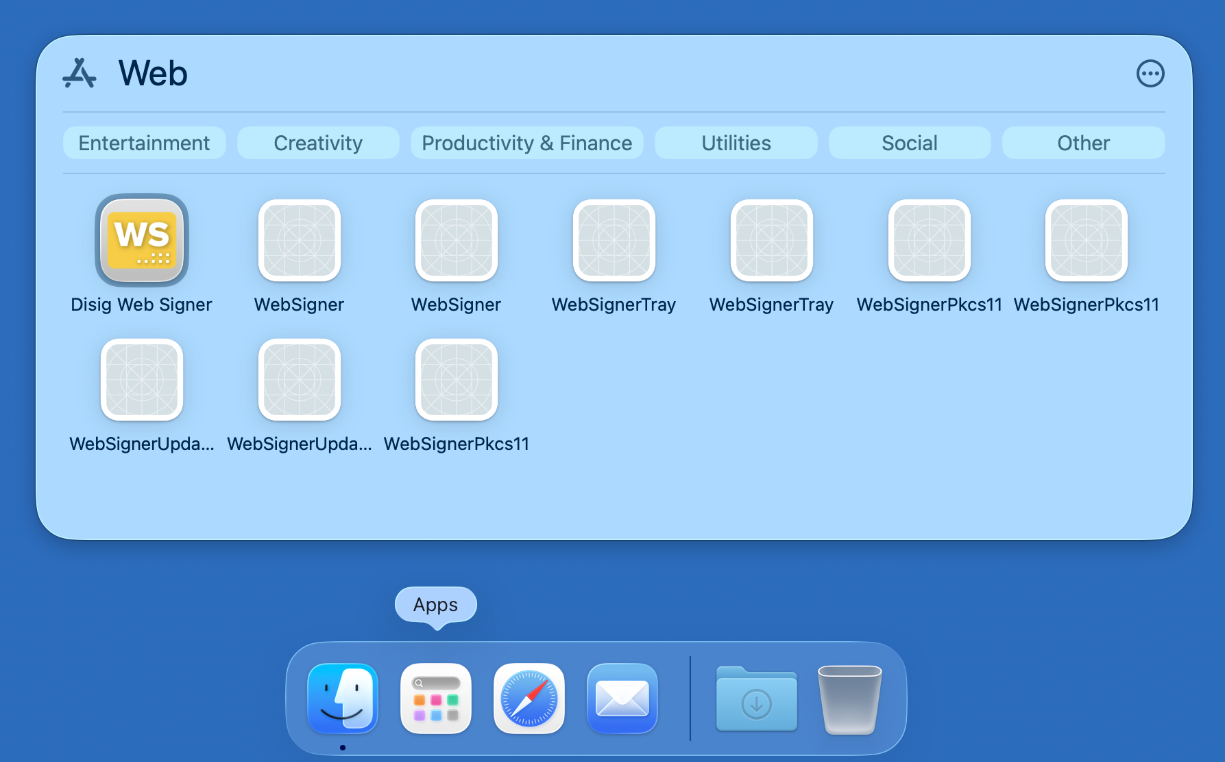
The Web Signer application can be started manually from Apps:
- Click the Apps icon, which is usually located on the left side of the Dock.
- Start typing the application name “Web Signer”.
- Click the Web Signer icon when it appears in Apps.
The following figure shows Apps with the application icon:
Automatic application startup
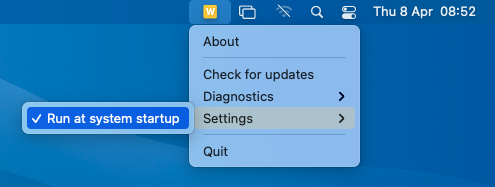
Automatic start of the Web Signer application at operating system startup can be enabled or disabled by right-clicking the Web Signer application icon on the menu bar and selecting the “Settings > Run at system startup” option.
This setting applies only to the current user account.
Linux
Application startup check
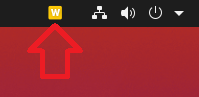
When the Web Signer application is running, a yellow application icon is displayed on the menu bar.
Manual application startup
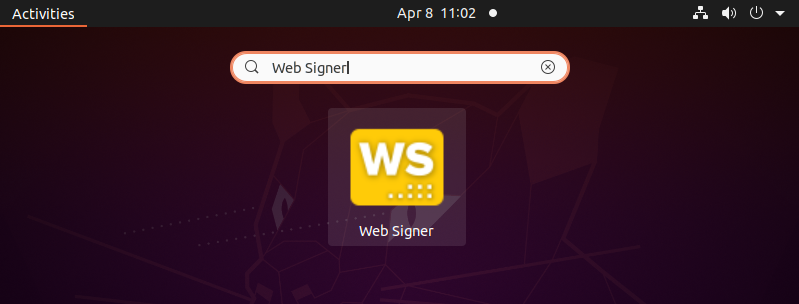
The Web Signer application can be started manually from the Activities overview:
- Click Activities, which is usually located in the top left corner of the screen.
- Start typing the application name “Web Signer”.
- Click the Web Signer icon when it appears in the Activities overview.
The following figure shows the Activities overview with the application icon:
Automatic application startup
Automatic start of the Web Signer application at operating system startup can be enabled or disabled by right-clicking the Web Signer application icon on the menu bar and selecting the “Settings > Run at system startup” option.
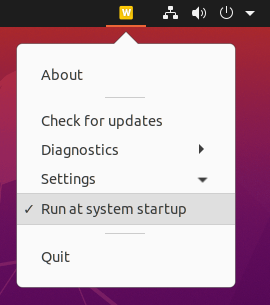
This setting applies only to the current user account.